
How to Add Your Website to Google Search Console: A Step-by-Step Guide
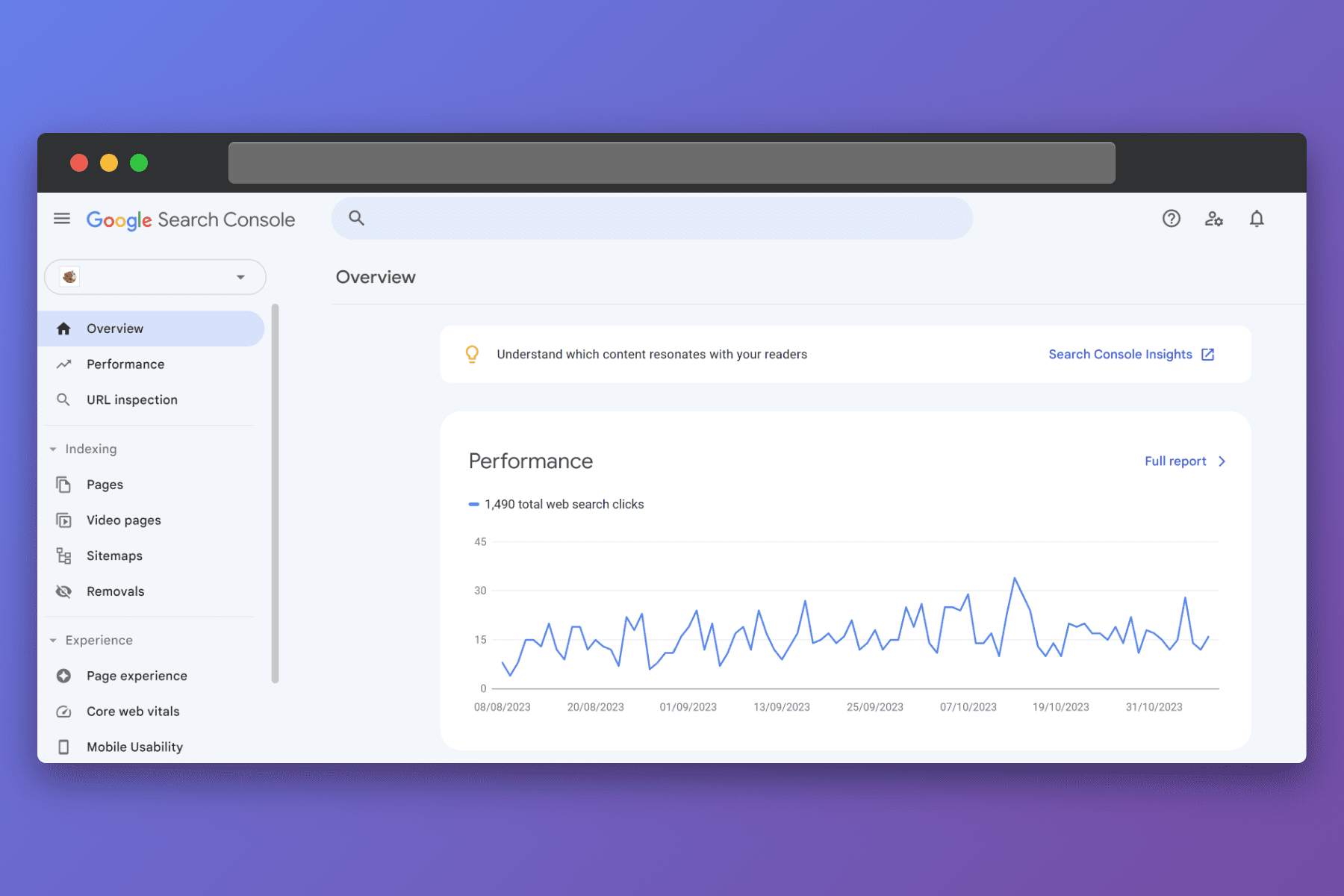
Table of Contents
Collapse- Step 1: Sign in to Your Google Account
- Step 2: Select Your Property Type
- Choice A: The Domain Property
- Choice B: The URL Prefix Property
- Step 3: Choose Your Verification Method
- HTML File Upload
- HTML Tag Verification
- Google Analytics Verification
- Step 4: Initial Configuration and Preferences
- Step 5: Essential Actions for New Users
- Submit Your XML Sitemap
- Use the URL Inspection Tool
- Monitor the Page Indexing Report
- Conclusion
- Additional Learning Resources
Google Search Console remains an essential platform for anyone who manages a website, whether you are a small business owner, a marketing professional, or a dedicated search engine optimization expert. It provides direct insights into how the search engine views your digital property, helping you identify and fix technical issues that might prevent your pages from appearing in results. In this comprehensive guide, we will walk through the exact process of adding and verifying your website so you can begin utilizing its data to improve your online visibility.
Before you begin the setup process, it is helpful to understand why this tool is so important. Unlike third party analytics tools that estimate your traffic based on scripts, this platform provides data directly from the source. It tells you exactly which keywords people are typing to find you and which of your pages are being ignored by the crawlers. By connecting your site, you move from guessing about your performance to having a clear, data driven strategy.
Step 1: Sign in to Your Google Account
The first requirement for using this service is a valid Google account. Most users already have one through Gmail, Google Workspace, or YouTube. If you do not have an account, you will need to create one for free at the Google account registration page. It is highly recommended that you use an account that is tied to your business or your primary professional email, as this will be the central hub for all your website data.
Once you have signed in to your account, navigate to the official Google Search Console website. You will see a welcome screen that invites you to start the process of adding a new property. A property is simply the term used to describe any website, mobile application, or web domain that you wish to monitor.
Step 2: Select Your Property Type
When you click the option to add a new property, you will be presented with two primary choices. This is a critical decision that affects how your data is collected and how much technical work is required for verification.
Choice A: The Domain Property
The domain property is the most comprehensive option. It covers all subdomains, such as the www and non www versions of your site, as well as any subdirectories or secondary sections like blog.example.com or shop.example.com. Because it captures every version of your domain under a single umbrella, it is often the preferred choice for those who want a unified view of their entire digital footprint.
However, a domain property requires a specific type of verification known as DNS verification. This means you must have access to the settings of your domain name registrar, such as GoDaddy, Namecheap, or Google Domains. You will need to add a specific text record to your DNS settings to prove you have total control over the domain.
Choice B: The URL Prefix Property
The URL prefix property is more specific. It only tracks data for a specific version of your website, such as https://www.example.com. If you want to track a different version, such as the http version or a specific folder like /store/, you would need to create a separate property for each.
The advantage of the URL prefix property is that it offers much more flexible verification methods. If you do not have access to your domain's DNS settings, this is the path you should take. It allows you to verify ownership through simpler methods like uploading a small file or adding a line of code to your homepage.
Step 3: Choose Your Verification Method
Verification is the process by which you prove to Google that you actually own or manage the website in question. This security measure ensures that private search data is only visible to authorized users. Depending on the property type you chose, you will have several methods available.
HTML File Upload
This is one of the most reliable methods for those who have access to their website's hosting environment. Google will provide a small HTML file that contains a unique string of characters. You must download this file and then upload it to the root directory of your website using a file manager or an FTP client. Once the file is live on your server, you return to the console and click verify. Google will then check for the file at your URL and confirm your ownership.
HTML Tag Verification
If you are using a content management system like WordPress or a website builder like Wix, the HTML tag method is often the easiest. Google provides a single line of code known as a meta tag. You must copy this tag and paste it into the head section of your website's homepage. Many SEO plugins have a dedicated box where you can simply paste the code, and the plugin will handle the placement for you. Once you save your changes and click verify in the console, the connection will be established.
Google Analytics Verification
If you already have Google Analytics 4 installed on your website and you are signed in to the same Google account, you may be able to verify your property instantly. Google will check for your tracking code on the site and automatically confirm your identity. This is the fastest method, but it requires that your tracking code is placed correctly in the head section of your pages.
Step 4: Initial Configuration and Preferences
Once your website is successfully verified, you will be granted access to the dashboard. Your first task should be to set up your preferences. While the modern console handles many settings automatically, you should ensure that your preferred domain is being handled correctly.
In the past, you had to manually tell Google whether you preferred the www or the non www version of your site. Today, Google generally handles this based on your canonical tags, but you can still use the settings menu to review your ownership details and manage which users have access to your data. If you have a team, you can add other users here by entering their email addresses and assigning them specific permission levels.
Step 5: Essential Actions for New Users
After the initial setup is complete, you should not simply wait for data to appear. There are several proactive steps you can take to help the search engine understand your site more quickly.
Submit Your XML Sitemap
Navigating to the sitemaps section in the left hand menu is one of the most important things you can do. A sitemap is a list of all your important pages. By entering the URL of your sitemap and clicking submit, you are giving the search spiders a clear map of your content. This ensures that even your deep or new pages are discovered and indexed without delay.
Use the URL Inspection Tool
If you have a specific page that is not appearing in search results, you can use the URL inspection tool at the top of the screen. This allows you to see exactly how the search bot sees that page. It will tell you if there are any crawl errors or if the page is being blocked by your robots.txt file. You can also use this tool to request indexing after you have made major updates to a piece of content.
Monitor the Page Indexing Report
The indexing report is where you will spend much of your time. It shows you which pages are currently in the index and which ones are not. More importantly, it provides the reasons why certain pages were excluded. Sometimes Google finds a page but decides it is a duplicate, or it might find a page but encounter a 404 error. Regularly checking this report allows you to fix technical errors before they hurt your rankings.
Conclusion
Adding your website to Google Search Console is a foundational step for anyone serious about their digital presence. It provides a bridge between your website and the search engine, offering a level of transparency that no other tool can match. By following the steps outlined in this guide, you have established a direct line of communication with Google, allowing you to monitor your health, submit your content for faster crawling, and understand the behavior of your visitors.
While Search Console is great for manual work, for larger sites, you may want to use a bulk URL indexing tool to handle thousands of pages at once.
As you become more comfortable with the platform, you will find that the data it provides is the key to long term growth. Whether you are fixing mobile usability issues or discovering new keyword opportunities, the console is your most powerful ally in the search for online success.
Additional Learning Resources
If you would like to continue your education, there are several official paths available. The Google Search Console Help Center provides documentation on every specific report and error code you might encounter. Additionally, the Google Search Central blog is the best place to stay updated on new features and algorithm changes that might affect how your data is displayed. By staying informed and checking your console regularly, you can ensure your website remains healthy and visible for years to come.